TL;DR
In this episode, you’ll learn how Mac-using solopreneurs Joe Casabona, Anthony Franco, Wayne Pelletier, and Jen Rulon use AI to handle their note-taking.
Discover workflows to convert handwritten brainstorms into text, turn phone calls into perfect summaries, and use automated assistants to transcribe your Zoom meetings so you can remain 100% present in every conversation.
Watch now
Summary
Guest Profiles and Tech Setup
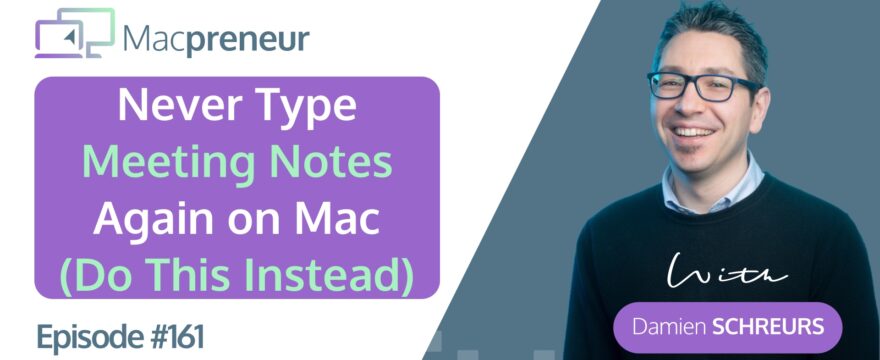
In episode 161 of the Macpreneur podcast, I revisit how four of my guests—Joe Casabona, Anthony Franco, Wayne Pelletier, and Jen Rulon—are leveraging AI to solve the common solopreneur struggle of trying to listen and type simultaneously during meetings.
All four have implemented AI-driven workflows on their Apple devices to become fully present listeners while ensuring they still get perfect notes.
Main Apps and Services
The episode explored a range of tools, from built-in Apple features to specialized third-party services:
- Apple Notes: Leveraged by Joe Casabona for its handwriting-to-text capabilities and by Anthony Franco for automatic phone call transcription.
- ChatGPT: Used by Anthony Franco to summarize raw transcripts into usable notes.
- Fathom & Granola: Dedicated AI meeting assistants used by Jen Rulon and Wayne Pelletier to automatically record, transcribe, and summarize online meetings.
The benefits highlighted included:
- Being 100% present in conversations
- Saving mental energy and time
- Capturing ideas quickly from iPad to Mac
- Providing professional, immediate follow-ups to clients
Tips and Tricks
From Joe Casabona: The Handwriting-to-Text Workflow
- Use an iPad and Apple Pencil to capture brainstorming ideas naturally.
- Leverage the built-in AI feature in Apple Notes to instantly convert that handwriting into searchable digital text.
- Access the converted text immediately on your Mac for use in other documents.
From Anthony Franco: The “Superpower” Phone Call Workflow
- Use the built-in record button on iPhone for unscheduled client calls.
- Let Apple Notes automatically transcribe the recording.
- Copy the transcript into ChatGPT to generate a perfect summary, allowing you to focus entirely on the conversation rather than taking notes.
From Jen Rulon & Wayne Pelletier: The Automated Meeting Assistant
- Utilize dedicated tools like Fathom (online) or Granola (local) that integrate directly with your calendar.
- Allow these tools to automatically record and summarize your Zoom sessions.
- Use automation features to send recording links and summaries to guests immediately after the meeting ends.
I also shared a resource for you: a quick, 2-minute quiz at macpreneur.com/aistage that determines your AI archetype (Dabbler, Integrator, or Automator) and provides three simple, practical next steps you can take today.
Missed those episodes? Revisit them via the following links:
- MP114 – Helping Solopreneurs Streamline Their Podcast Systems on a Mac with Joe Casabona
- MP126 – Using a Mac to Design Squarespace Websites with Wayne Pelletier
- MP127 – Using a Mac as a Women’s Fitness & Life Coach with Jen Rulon
- MP139 – Turn AI Into Your Best (and Cheapest!) Virtual Assistant with Anthony Franco
Key Takeaways
- Manual note-taking during meetings often leads to half-listening and poor notes; AI solves both problems simultaneously.
- Apple Notes has powerful built-in AI that can turn iPad handwritten brainstorms into usable, searchable text on your Mac.
- You can turn any unscheduled iPhone call into a perfect summary by combining native call recording with ChatGPT.
- Dedicated AI meeting assistants like Fathom and Granola act as silent partners, handling recording and summarizing without you lifting a finger during the call.
- The ultimate goal of AI note-taking isn’t just creating more data, but saving mental energy and allowing you to be a fully present solopreneur.
Listen Now
Subscribe from your favorite podcast player




FULL TRANSCRIPT (Click here)
[00:00:00] Introduction: The Struggles of Solopreneurs
Damien Schreurs: Hello, hello! As solopreneurs, we live in meetings, client calls, discovery calls, podcast interviews, and webinars, and in every single one of them we are trying to do two things at once: be present and listen while typing or scribbling notes so that we don’t forget the important stuff. The result is that we end up doing both poorly.
We half-listen and take bad notes.
[00:00:27] Leveraging AI for Note-Taking
Damien Schreurs: What if you could be 100% present in every conversation, fully focused on the other person, building that relationship—all while knowing that your own personal AI assistant was silently taking perfect notes for you? My podcast guest and I have been using these workflows, and they are complete game changers.
Today I’m going to show you how to use AI on your Mac, from built-in tools to amazing third-party apps that automatically transcribe—and, more importantly, summarize—your meetings and calls, saving you hours every single week.
Nova AI: Welcome to Macpreneur, the show for seasoned solopreneurs looking to streamline their business on a Mac. Unlock the secrets to saving time and money with your host and technology mentor, Damien Schreurs.
[00:01:22] Using Apple Notes for Handwritten Ideas
Damien Schreurs: So let’s start with the simplest use case: capturing your own ideas.
Maybe you are not in a meeting; you are just brainstorming. Personally, I love my iPad and Apple Pencil for this, but the problem has always been: how do you make those handwritten notes useful?
You can’t necessarily search them. You can’t necessarily copy and paste them into a proposal.
Well, as my guest Joe Casabona explained in episode 114, Apple Notes is a powerful AI feature that can help you with this.
Joe Casabona: I’ve started using Apple Notes again. While I love Bear Notes, I get my Markdown fix from Obsidian. I find that inputting into Apple Notes is a little bit faster, so when I want to capture something quickly, Notes is there. Something I’ve been using a whole lot is the feature to convert handwriting to text—it’s really good.
I’ll write a note on my iPad, and then I’ll be able to grab the text and put it somewhere else on my Mac. That’s been a game changer for me because I love writing handwritten notes and hate moving them to a digital format later.
Damien Schreurs: That handwriting-to-text feature is brilliant for capturing your own thoughts, but what about capturing what other people say?
[00:02:53] Recording and Transcribing Phone Calls
Damien Schreurs: This is where it gets really powerful, especially for those unscheduled phone calls. You are on your iPhone, a client calls, and they drop three critical action items. What do you do? Well, back in episode 139, my guest Anthony Franco shared a workflow that he calls a superpower, and I have to agree.
It starts with recording the call on his iPhone, which automatically transcribes it into Apple Notes—but that’s not even the magic part.
Anthony Franco: I can record phone calls. It’ll transcribe them for me, and then I can put the transcription into ChatGPT, and it’ll summarize it for me so I don’t have to take notes anymore. On phone calls, I just record them, and it gives me a great summary so I can be focused on the conversation and the person I’m talking to, knowing that someone is there to capture the information so I can refer to it later. It’s a superpower. It’s magical.
Damien Schreurs: And so, is it linked now to the voice memo, or is it integrated with the phone app?
Anthony Franco: It drops it in. It’s a great question because it took me a second to find the recording; there’s a little record button for phone calls. You hit the record button, it records the call and drops it into Notes. Then you go into Notes, and it’ll transcribe it for you.
Damien Schreurs: How amazing is that! No more note-taking—just focusing on the conversation. That final step, using ChatGPT to summarize the transcript, is the real time saver.
[00:04:33] AI Tools for Online Meetings
Damien Schreurs: But, okay, what about our scheduled Zoom meetings? Manually recording, waiting for the transcript, and then uploading it to ChatGPT is still a few steps.
This is where dedicated AI note takers come in.
These tools are designed to be your silent, automated meeting assistant. My guests from episodes 126 and 127, Wayne Pelletier and Jen Rulon, both use apps specifically for this.
Wayne Pelletier: A local app I like is called Granola. It’s an AI transcription app—really good for recording voice and calls locally. It’s a bit of a game changer when it comes to making notes from my calls and meetings.
Jen Rulon: I do use—what is it called?—Fathom, and that’s a little AI note taker which is fantastic with my clients, though I believe that’s mostly online as well.
Damien Schreurs: Yeah, so there’s a local app—a Fathom app that runs on the Mac continuously. You most likely give it access to your calendar so it knows when you have Zoom meetings. And what’s nice with Fathom, because I’m using it from time to time, is that it will pop up in the top right corner a few minutes before the meeting.
Jen Rulon: Yes. Yes.
Damien Schreurs: Actually, starting the Zoom session is very quick. You click on a button, and there is a local component—a Mac app that lives most of the time in the menu bar at the top. Then, Fathom records the Zoom session, and the recording is stored online. The summary, the transcriptions, and so on are accessed through the browser, right? It’s easy.
Jen Rulon: Exactly, exactly.
Damien Schreurs: And what is nice is that Fathom can automatically send an email to the guests—the other people in the Zoom session—with the link to the recording. Right? I think it’s not fully automatic because I have the free plan. I don’t know if you pay; I have the free plan, and it’s not automatic, but there’s just a button to click. I can do that immediately after the meeting: I click on the button, and then the other people get a link to the recording.
Jen Rulon: Sure.
Damien Schreurs: Tools like Fathom and Granola are fantastic because they plug right into your calendar. They just show up, do their job, and provide a summary.
Being able to send that recording link to your guest right after the call is also a massive professional touch.
The goal here isn’t just to create more data; it’s to save you time and, more importantly, mental energy.
Imagine ending a client call and having a summary with action items before you’ve even closed the Zoom window. That’s what these tools do. You stop being a typist and start being a fully present solopreneur.
[00:07:52] Discover Your AI Archetype
Damien Schreurs: On a side note, I have created a super quick quiz to help you find out at which stage of your AI journey you might be.
In less than two minutes, you will discover whether you are an AI Dabbler, an Integrator, or a full-on Automator.
After answering 12 questions, you will get your personal AI archetype, but more importantly, three simple, practical next steps that you can take today.
Find out where you stand at macpreneur.com/aistage in one word.
That’s macpreneur.com/aistage.
And until next time, I’m Damien Schreurs, wishing you a great day.
Nova AI: Thank you for listening to the Macpreneur Podcast. If you’ve enjoyed the show, please leave a review and share it with a friend right now.
Want to level up your AI Game?
Latest episodes
MP177: The Free AI Tool That Turns Long Videos Into Social Clips on Mac with Clive Moore
Clive Moore uses a Mac-centered AI workflow to turn long videos into ready-to-publish social clips, run language models locally, and automate agency work.
The real lesson: combine simple built-in tools with carefully managed AI workflows instead of paying for complexity by default.
MP176: How This Solopreneur Turned a $1,000 Mac Into an AI-Enhanced Workhorse with Ely Delaney
TL;DR Ely Delaney turned an affordable Mac mini into a dependable, AI-enhanced workhorse for content, email marketing, and relationship-building. The real lesson: use AI to accelerate your expertise, not to replace the human judgment that makes your work effective. Connect with Ely Delaney Website: https://connectwithely.com/ LinkedIn: https://www.linkedin.com/in/elydelaney Watch now https://www.youtube.com/watch?v=FrIYMPUdths Listen now Affiliate disclosure Resources…