
TL;DR
Discover a revolutionary Mac automation shortcut that uses AI to intelligently rename your screenshots and images, eliminating the tedious manual file organization process.
This episode provides a step-by-step guide to implementing a powerful, flexible solution that works across different Mac setups and AI technologies.
Watch now
Listen now
Summary
As a solopreneur constantly seeking ways to optimize my workflow, I’ve battled the frustration of “automation blank page syndrome” – that moment when you stare at a powerful tool like Shortcuts and wonder where to begin.
In this episode, I’m sharing a game-changing solution that tackles three major productivity killers:
- unnecessary clicks
- repetitive typing, and
- file clutter.
The heart of this automation is a hybrid AI shortcut that automatically renames your Mac screenshots and images.
Here’s the magic: the shortcut intelligently uses available AI technologies to extract and analyze text within images.
Depending on your Mac’s setup, it can leverage the OpenAI API, the ChatGPT desktop app, or even Apple Intelligence to generate meaningful file names.
What makes this shortcut truly special is its flexibility:
- If no text is found in an image, it simply prepends the creation date to the original filename.
- But when text is detected, AI steps in to create a descriptive, context-aware filename.
Here’s the full AI prompt if you want to try yourself:
You are ImageNamer. You have AI capabilities but you run inside Apple's Shortcuts app.

Your responses should be concise. Never go longer unless I ask you to be more detailed.

Here's the text extracted from an image:

<Extracted text>

I need help coming up with a relevant filename for this image based on its text content.

Please include underscores (_) between words to make the name easier to read.

Please generate a suitable name shorter than 50 characters **without* any file extension (do not include dots in the filename).

Do not acknowledge or preface anything, only output a suitable filename.

Make sure the number of characters is below 50.
The best part?
It’s designed to work across different Mac configurations – whether you’re running an Intel iMac from 2020 or the latest Apple Silicon machine.
I’ve also made the entire process incredibly accessible.
I’ve created a comprehensive guide available at macpreneur.com/freebie168 that walks you through every step, including how to obtain an OpenAI API key if needed.

Whether you’re a Shortcuts novice or a seasoned automation enthusiast, this solution is designed to be user-friendly and immediately implementable.
Main Takeaways
- AI-Powered Automation: Leverage artificial intelligence to automatically rename screenshots and images based on their content.
- Cross-Platform Compatibility: Works on both Intel and Apple Silicon Macs, with multiple AI integration options.
- Productivity Boost: Eliminates manual file renaming, saving time and mental energy.
- Privacy-Focused: Uses API methods that don’t train on your data by default.
- Flexible Implementation: Can be used manually, through Finder Quick Actions, or as a fully automated folder action.
- Cost-Effective: Minimal expenses when using OpenAI API, with free options available through existing subscriptions.
- Simplifies File Management: Reduces file clutter and makes image organization intuitive.
- Beginner-Friendly: Comprehensive guide available for those new to Shortcuts and automation.
Subscribe from your favorite podcast player






FULL TRANSCRIPT (Click here)
Rename Mac Screenshots Automatically: The Genius “Hybrid” AI Shortcut
The Frustration of Automation Blank Page Syndrome
Damien Schreurs
Have you ever opened the Shortcuts app on your Mac, stared at the blank new Shortcuts screen and thought, “What am I even supposed to automate?”
As a fellow solopreneur, I know exactly how that automation blank page syndrome feels.
It’s frustrating to have such a powerful tool at your fingertips, but no idea where to start.
In this episode, I’m going to help you break that paralysis.
I’m sharing a battle-tested shortcut that I use daily to save time and mental energy.
As I hinted back in episode 167, we are diving into a hybrid automation that uses AI to automatically rename your messy screenshots and images based on the actual text inside them.
If you missed that episode and want to discover the three types of automations that every solopreneur needs to know in the age of AI, you can check it out at macpreneur.com/episode167.
Stick around till the end because I will give you a link to get the shortcut that I’m talking about today.
In fact, I’ve created a step-by-step guide to help you import, set up, and use this automation in no time, even if you’ve never used Shortcuts before.
Nova AI
Welcome to Macpreneur, the show for seasoned solopreneurs looking to streamline their business on a Mac.
Unlock the secrets to saving time and money with your host and technology mentor, Damien Schreurs.
The Old Way: Manual Image Renaming
Damien Schreurs
Hello, hello, and welcome to episode 168 of the Macpreneur podcast.
Whether it’s your first time or you’re a longtime listener, I appreciate that you carve out some time in your busy solopreneur schedule.
I’ve been using Hazel for a while now to automatically rename PDF invoices and other documents based on the text inside it.
And even if it’s technically possible to extract text from images since Hazel version six, there is no AI action built in to process this text.
So the only kind of renaming that I had in place with Hazel, especially for Mac screenshots, was simply to prepend the creation date before the default text, which was “Screenshot” followed by the date and time the screenshot was taken.
As a result, I still had to go through each image, decide what it was about, then manually rename the second part of the name before moving them to an appropriate folder somewhere else.
The Spark of an Idea: A Hybrid AI Solution
Damien Schreurs
But when macOS 26 Tahoe got released, David Sparks shared a video in the Max Sparky Labs where he showed that Shortcuts now natively offers Apple Intelligence Actions.
And he was using Apple’s private cloud compute to summarize meeting transcripts with AI.
This is when I realized that it should be possible to use AI to rename images on a Mac via the Shortcuts app.
The issue was that an Apple Silicon Mac was required to activate Apple Intelligence and also it needed to run macOS 26 Tahoe.
I desperately wanted a solution that would work on any Mac, and especially my Intel iMac from 2020.
Long story short, I was able to pull this off using an OpenAI API key, completely negating the need for Tahoe and Apple Silicon.
And plus, by default, OpenAI does not use any data transiting through the API to train their model, so it’s more private out of the box than using ChatGPT directly.
So, of course, with ChatGPT, you can restrict it from using any of your data to train the model, but it requires you to go through the settings.
Why Automatically Rename Images with AI?
Damien Schreurs
Okay, before going into the solution itself, you might be wondering why you would need or what you would want to automatically rename images with AI.
The bottom line is, it saves a ton of time and energy.
And actually, it tackles the three killers of Mac productivity in one go.
If you remember them, they are: unnecessary clicks, repetitive typing, and file clutter.
And by the way, if you would like to know how well you are currently dealing with these three killers of Mac productivity, I have prepared a short quiz for you.
Just visit macpreneur.com/tips and answer a few questions, which will take you less than two minutes.
After submitting your answer, you will receive truly personalized time-saving tips based on your result.
And yes, it’s truly personalized because I’m using artificial intelligence to craft your personalized next steps.
So if you want to be more efficient on your Mac and you want to discover how good my AI assistant is, just visit macpreneur.com/tips.
How the Smart Automation Works
Damien Schreurs
Okay, back to the Shortcuts automation to rename images with AI.
You might now be wondering what this automation is about and where it works.
Well, it works both on Intel and Apple Silicon Macs, and it’s a hybrid automation, meaning that it can be deterministic or non-deterministic based on a condition.
If it finds text inside the image, then AI will use that text to create a name.
Otherwise, the automation will simply prepend the creation date to the original name of the image.
Obviously, it requires shortcuts for Mac, which, in other words, means you need a Mac running at least macOS 12 Monterey.
And then finally, in some cases, it’s totally free and if you were to use an OpenAI API key, then it will be very cheap to run.
We’re talking about a few cents per thousands of images renamed.
The very first version that I created was exclusively using and requiring an OpenAI API key, which makes it cross-compatible but also adds a little bit of friction.
If you have no idea what it’s all about, don’t panic.
I have prepared the step-by-step instructions on how to get your first OpenAI API key in no time.
Not only is it easier than you might think, but it’s also very quick.
It will take you less than five minutes.
Having said that, I still wanted to see if it was possible to remove these requirements.
So, before releasing this episode and sharing the shortcut with you, I drastically improved it.
Long story short, the latest version of this shortcut now is capable of leveraging the ChatGPT desktop app if it was installed on the Mac, and of course, Apple Intelligence like what David Sparks demonstrated.
In those two cases, so ChatGPT and Apple Intelligence, it won’t cost you anything more than what you’re already paying for.
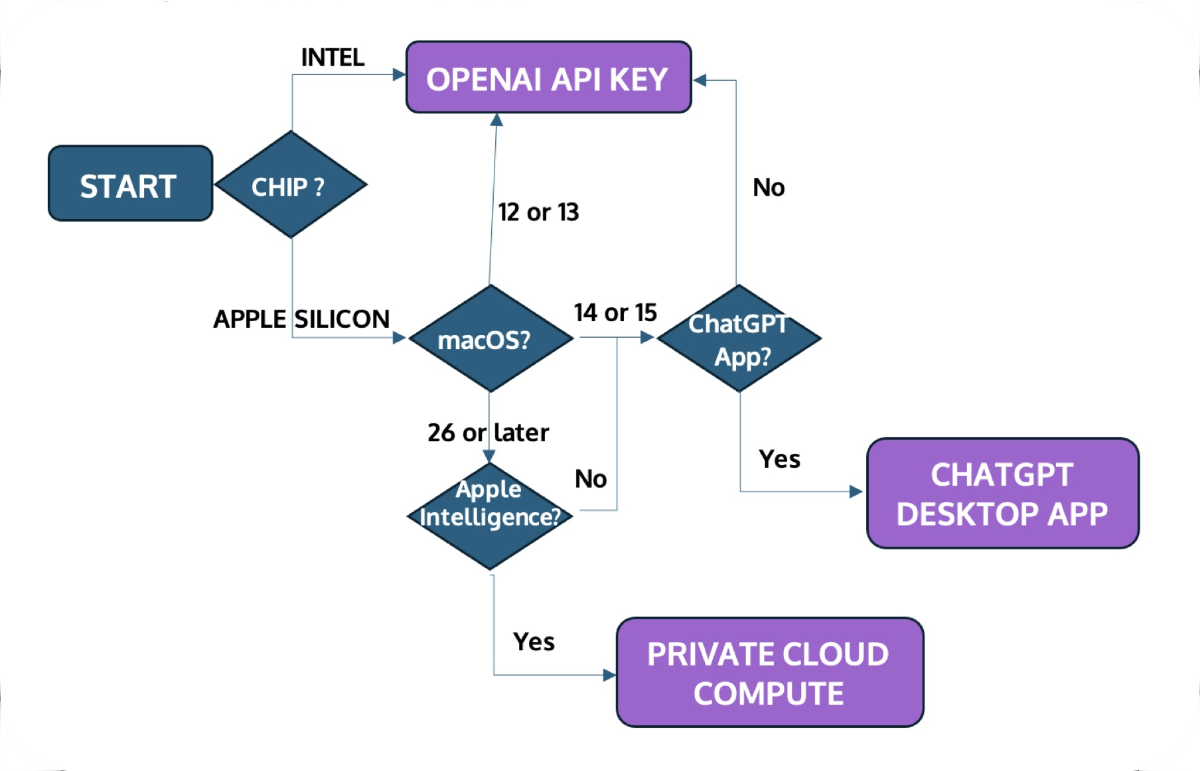
And the good news is that when the automation kicks in, it will start by selecting the cheapest and most appropriate AI method based on your Mac setup.
Yes, the automation will look which processor your Mac has.
If it’s an Intel processor, it will use an OpenAI API key.
Now, if your Mac has an Apple Silicon chip, then it will check which version of macOS is running on your computer.
If it’s macOS 12 or 13, it will use the OpenAI API key too, because the ChatGPT app requires at least macOS 14 Sonoma, so you won’t be able to have ChatGPT on your Mac with macOS 12 or 13.
Now, if your Mac is on macOS 14 or 15, the script will check if the ChatGPT desktop app has been installed, and if it is, the renaming will be done through your ChatGPT app, covered by your subscription or even the free plan.
But if you don’t have the ChatGPT app on your Mac, it will revert back to the OpenAI API key.
And finally, if your Mac is on macOS 26 Tahoe or later, then it will check if Apple Intelligence has been activated.
If it sees that it’s activated, then it will use Private Cloud Compute.
It’s a highly secured cloud environment fully controlled by Apple where they will run a large language model.
Otherwise, the automation will check again if the ChatGPT app has been installed to see if it can use it, or if it needs to revert back to using an OpenAI API key.
Setting Up and Running the Automation
Damien Schreurs
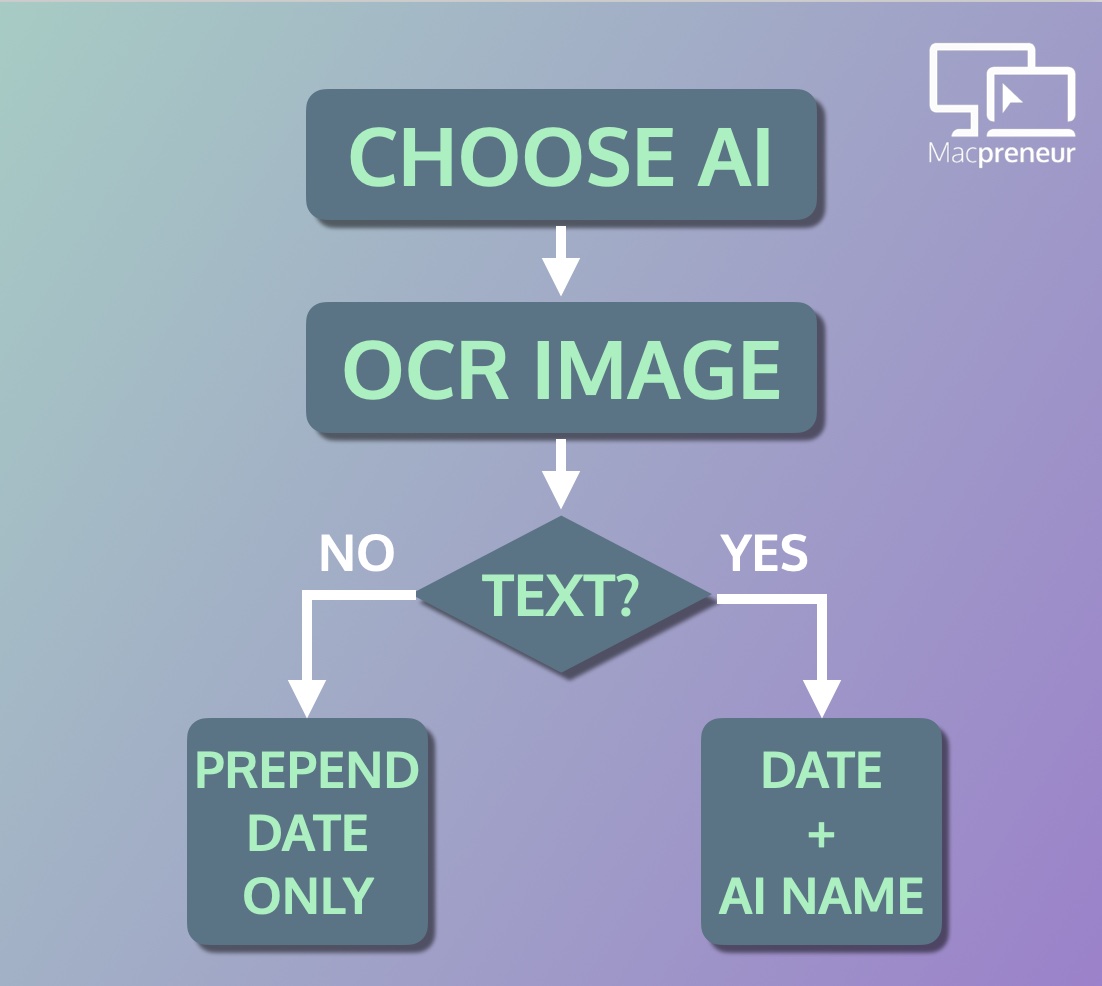
At a high level, here is what the entire automation does.
First, it chooses the most appropriate AI engine.
Second, it will OCR the image, basically extract any text within the image, and then it will check whether there is text in that OCR step.
If no text was found, then it will simply prepend the creation date to the original name.
If text was found, then it will use AI to find a suitable name based on the text, and it will also prepend the creation date.
Setting this automation up is very simple.
After clicking the iCloud Sharing link, you will just click on the button that says, “Add Shortcut.”
Then it will allow you to enter an OpenAI API key.
If you want to be able to run the shortcut on multiple Macs connected to the same iCloud account, and if at least one of those Macs requires an OpenAI API key, then you can enter it here.
If you don’t have an OpenAI API key yet, it’s okay.
You can leave the default, but then you will absolutely need to open the shortcut later to paste the API key that you will generate.
And finally, at the bottom, you will see another button that says, again, “Add Shortcut.”
You click on that, and it will be imported inside Shortcuts on your Mac, and it will be synchronized with iCloud to all your other Macs as well.
One way to run this automation is from the Shortcuts app directly.
You open the Shortcuts app, and then you click the play icon to the left of the shortcut’s name.
This will open a finder window where you will be able to select one or more images from the same folder.
This allows you to rename multiple images in one go.
The first time the automation tries to access files from a given folder, say your Desktop, it will ask you for permission to do so.
You will just need to click okay, and then the next time you want to rename images from the desktop, it will do it automatically.
And then finally, every time that a file is renamed, there will be a notification on your Mac in the top-right corner with the new name.
Another way to run this shortcut automation is directly from Finder.
You just select a bunch of images, then you right-click, and you will visit the Quick Actions section.
There, in the list, you will see “Rename Images with AI”.
Just click on that and all the files that have been selected will be renamed in one go.
And like I explained before, you might see a permission request the first time that you run it inside a given folder.
The Fully Automated Folder Action
Damien Schreurs
Finally, thanks to Automator’s folder action, it’s even possible to run this shortcut automatically as soon as images land in a chosen folder.
Yes, the folder action requires only a single AppleScript action that will invoke the proper Shortcuts automation.
The challenge that I faced when trying to implement it was to prevent the automation from running every time that an image was renamed, because yes, when my shortcut renames the image, Automator believes that there is a new file that just landed in the same folder.
At the beginning, it was running in an infinite loop.
The trick and the solution that I implemented was to add some text in the comments section of the image via Finder.
So, I’ve chosen [RENAMED].
Now Automator checks if it sees [RENAMED] in the comments section of the file.
If it finds that, it doesn’t do anything; it will not run the shortcut anymore.
But if there is no [RENAMED] in the comments, then it will run the Shortcuts automation and add [RENAMED] to the comments section, so that once it is renamed, Automator will not try to rename it again.
How to Get the Free Guide and Shortcut
Damien Schreurs
And so if you would like to implement all of this yourself, or even just part of it, the good news is that I’m giving away everything.
Just visit macpreneur.com/freebie168 to grab your own copy of the user guide.
The guide contains the iCloud link that will allow you to import the Shortcuts automation directly onto your Mac.
Here we’re talking about eleven pages with step-by-step instructions and screenshots, including how to get your very first OpenAI API key if you need to.
There will also be the AppleScript that you just need to copy-paste if you want to automatically rename images with Automator.
And even if you’ve never used Shortcuts and Automator before, this guide will help you set everything up in no time.
You will be surprised how easy it is after all.
And hopefully, this will give you the courage to automate more stuff in your solopreneur business.
Once again, visit macpreneur.com/freebie168.
Coming Up Next…
Damien Schreurs
In the next episode, I’m going to share a fully deterministic automation that will help you stay 100% consistent when tracking time for client work.
And if you’re not doing it yet, once you will see how easy and frictionless it can be, it might even motivate you to start time tracking too.
So, make sure to subscribe or follow this podcast to get it automatically.
And until next time, I’m Damien Schreurs, wishing you a productive day.
Nova AI
Thank you for listening to the Macpreneur podcast.
If you’ve enjoyed the show, please leave a review and share it with a friend right now.
Latest episodes

MP179: How Mac Solopreneurs Can Escape the AI Multitasking Trap with Jan Trautwein
TL;DR Jan Trautwein uses AI to expand what a solo business can build while coaching founders to stay focused, healthy, and willing to ship. The real lesson: multitasking is only useful when you have a reliable way back to the work that matters. Connect with Jan Trautwein https://jantrautwein.com/ https://www.linkedin.com/in/jantrautwein/ https://www.instagram.com/jan_trautwein/ Watch now https://www.youtube.com/watch?v=sDkNNTlLWbE Listen now…
Continue Reading MP179: How Mac Solopreneurs Can Escape the AI Multitasking Trap with Jan Trautwein
MP178: Mac Solopreneurs, Why AI May Not Be Saving You Time with Gary Pageau
Gary Pageau emphasizes that providing upfront guidance significantly enhances the quality of AI-generated podcast clips, saving time in the editing process. Effective AI use requires context, human quality checks, and automation to improve workflow. He encourages careful selection of tools and regular subscription evaluations to ensure productivity and efficiency.
Continue Reading MP178: Mac Solopreneurs, Why AI May Not Be Saving You Time with Gary Pageau