Affiliate disclosure
Hey there! Quick heads-up: Some of the links in this post might be special. Why? Because if you click on them and make a purchase, I earn a small commission at no extra cost to you. It’s like a virtual high-five for recommending stuff I love! So, thank you for supporting me and the Macpreneur podcast! Remember, I only promote products that I genuinely believe in. Now, let’s dive back into the fun stuff!
TL;DR
Navigating the AI gold rush can be overwhelming for solopreneurs, but understanding Mac automation doesn’t have to be complicated.
This episode breaks down the three types of automation, essential building blocks, and provides a roadmap for integrating AI tools to streamline your business workflow.
Listen now
Watch now
Summary
As a solopreneur, I know how challenging it can be to keep up with the rapidly evolving world of technology and automation.
In this episode of Macpreneur, I wanted to demystify the complex landscape of Mac automation and help fellow entrepreneurs leverage AI to work smarter, not harder.
I introduced three critical types of automation that every Mac user should understand:
- Deterministic automation is like a predictable train route – think text expansion where the same input always produces the same output.
- Non-deterministic automation, powered by generative AI, is more like a hot air balloon, where each interaction can produce slightly different results.
- The hybrid approach combines these methods, allowing for flexible and intelligent workflows.
The building blocks of automation are straightforward: you start with a trigger (which can be manual like a keyboard shortcut or automatic like a specific time of day), followed by actions that can range from simple app controls to complex script executions.

What’s exciting is how AI can now enhance these workflows, helping evaluate conditions and determine next steps.
I also broke down the Mac automation tool landscape, distinguishing between traditional tools like Alfred, LaunchBar, Automator, Hammerspoon, Hazel, Keyboard Maestro, PopClip and TextExpander, 
and newer AI-enhanced options like Shortcuts, BetterTouchTool and Raycast.

For those worried about getting started, I created a comprehensive 20-page report available for free at macpreneur.com/at26 to help guide your automation journey.

Main Takeaways
- Automation isn’t one-size-fits-all: Understand the three types (deterministic, non-deterministic, and hybrid) to choose the right approach for your workflow.
- AI can simplify complex tasks: Leverage generative AI to automate text generation, image renaming, and conditional workflows.
- Mac offers diverse automation tools: From traditional options like Automator to AI-enhanced tools like Shortcuts and Raycast.
- Automation triggers can be manual or automatic: Utilize keyboard shortcuts, time-based triggers, location changes, and more.
- Privacy matters: Some tools like BetterTouchTool allow local LLM usage for maximum privacy.
- Standalone AI tools can enhance productivity: Explore options like MacWhisper for automatic transcription and dictation.
- Start small and experiment: Don’t be overwhelmed – begin with simple automations and gradually build complexity.
Subscribe from your favorite podcast player






FULL TRANSCRIPT (Click here)
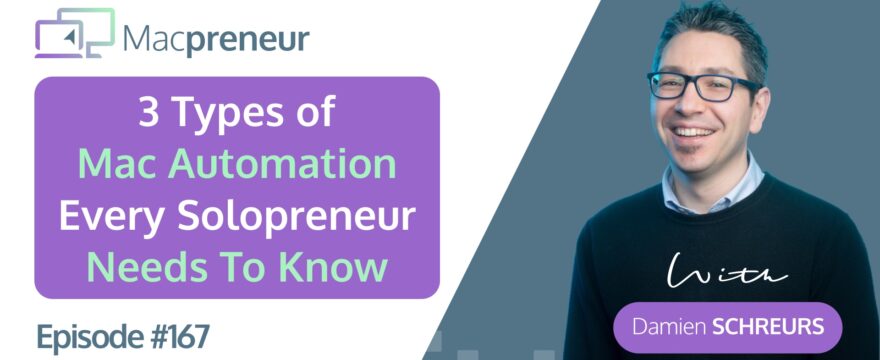
3 Types of Mac Automation Every Solopreneur Needs to Know
Intro: The AI Gold Rush for Solopreneurs
Damien Schreurs
Is your Mac working for you, or are you still doing all the heavy lifting?
Right now, we’re in the middle of an AI gold rush, and for a solopreneur, it can be overwhelming.
You hear about automation and you hear about AI, but how do they actually fit together on your Mac?
Some people are afraid to start because it looks too complex, and others are using the wrong tools for the wrong jobs.
In this episode, I’m going to simplify everything.
I will explain the three types of Mac automation, I will quickly cover the basic building blocks of an automation, and finally, I will give you a clear map of which apps are AI-ready and which ones are strictly traditional.
And stick around till the end because I compiled a 20-page deep dive report on the entire Mac automation landscape.
I’ve done the research so you don’t have to, and I will tell you exactly how to get your hands on it for free at the end of the episode.
Show Introduction
Nova AI
Welcome to Macpreneur, the show for seasoned solopreneurs looking to streamline their business on a Mac.
Unlock the secrets to saving time and money with your host and technology mentor, Damien Schreurs.
Welcome and Productivity Quiz
Damien Schreurs
Hello, hello, and welcome to Episode 167 of the Macpreneur Podcast.
Whether it’s your first time or you’re a longtime listener, I appreciate that you carve out some time in your busy solopreneur schedule.
I’ve created Macpreneur to help as many solopreneurs as possible save time and money running their businesses on their Macs.
Now, in order to give you the most relevant Mac productivity tips and information, I need to know how well you are currently dealing with the three killers of Mac productivity, namely, unnecessary clicks, repetitive typing, and file clutter.
For that, just visit macpreneur.com/tips and answer a few questions, which will take you less than two minutes.
After submitting your answers, you will receive personalized time-saving tips based on your results.
Once again, visit macpreneur.com/tips and start boosting your efficiency today.
The Three Types of Mac Automation
Damien Schreurs
Okay, let’s start with the three types of automation.
The first one is deterministic, the second one is non-deterministic, and the third one is hybrid.
Deterministic automations are predictable and reproducible.
It’s like a train on a track.
It follows a set path to a known destination every time.
And by the way, every Mac automation tool does this.
An example would be text expansion.
So every time that I type -VAT, the VAT number of Easytech gets expanded.
Non-deterministic automations are unpredictable.
The analogy would be a hot air balloon whose path and final destination depends on atmospheric conditions.
In our case, it’s generative AI that is the source of the unpredictability.
Given the same input, generating text or images using AI will produce a slightly different output each time that you run it.
And then the third and last type is hybrid automation.
The analogy would be to carry a hot air balloon on a train so it will stay on the track until a specific condition is met, and then we would decide whether to launch the balloon or not.
A practical example would be a shortcuts automation that I have set up to rename images based on the text inside them.
So it start with an optical character recognition step, so an OCR step, to look for text inside the images.
If there is no text, then renaming will only be based on the creation date.
Otherwise, the automation will then ask ChatGPT to come up with a short name based on the text found inside the image.
The Building Blocks of an Automation
Damien Schreurs
Now, if you’re new to automation, let me briefly go over the main building blocks.
It starts with a trigger, which can be manual or automatic.
Example of manual triggers would be keyboard shortcuts or trackpad gestures or clicking a button.
Could also be selecting text, turning on a specific focus mode, or pressing a button on a stream deck.
Example of automatic triggers would be the time of day, the days of the week, arriving at a specific location, or when a file lands into a specific folder.
But it can also be when you connect your Mac to a given wifi network or when a specific application opens.
Then it is followed by one or more actions.
The available actions depend from the automation tool.
However, they range from basic application control, like launching or quitting apps, but also resizing or snapping windows, but also it could be input simulation like typing text, pasting text.
It could also be moving the mouse cursor or clicking somewhere on the screen.
And then you have more advanced actions, like running scripts, like we would talk about AppleScript, Python, or JavaScript.
For more complex automations, you may need a third type of building block, which are workflow controls.
They come in three main flavors.
The first one is condition.
So if this, then that, otherwise, another thing.Another workflow control are loops, which could be repeating a series of actions a number of times, either a fixed number of times or based on a previous step.
So for instance, it would be doing the same task, renaming, uh, 50 files at once.
The third type of workflow control are error handling.
So, there is the try method, so it will try something and then if it fails, it will do something else.
But there is also the catch method, so it will catch any error that might occur and then let me know before proceeding.
And AI can help both with the actions and the workflow control.
So yes, one step could be to summarize text, but also a large language model can be used to evaluate a condition and then decide what to do next.
Mac Automation Tools: Traditional vs. AI-Ready
Damien Schreurs
At this point, you might be wondering about which tool has AI built in and which ones don’t have that.
So let’s start with classic Mac automation tools that don’t have AI built in.
So we have Alfred, LaunchBar, Automator, Hammerspoon, Hazel, Keyboard Maestro, PopClip, and TextExpander.
Some of them, like Alfred and PopClip, can be extended through third party plugins and actions that leverage AI, and others like Automator, Hazel, or Keyboard Maestro can actually run scripts that will then launch AI steps or could even invoke shortcuts directly.
Then we have AI enhanced automation tools for the Mac, and those are Shortcuts, BetterTouchTool, and Raycast.
Shortcuts has built in Apple Intelligence Actions since macOS 26 Tahoe.
However, it only works on Apple Silicon since Apple Intelligence is not available on Intel Macs.
It is still possible to have AI actions in Shortcuts on Intel Macs or on Macs with earlier version of macOS, and I’ll be talking about that in the next episode.
BetterTouchTool has native LLM based text modification and is currently beta testing a feature called Hello.ai.
It’s a way to use AI to perform actions on a Mac.
It’s even possible to use local LLMs like Ollama for maximum privacy.
And finally, Raycast offers built in AI capabilities, but it requires a monthly subscription.
However, it’s still possible to use AI with the free version of Raycast, but it then requires installing third party extensions alongside your own API keys.
Free Resource: The Mac Automation Landscape Report
Damien Schreurs
So to help you choose the right tool for your specific needs, I’ve put together the Mac automation landscape report.
It’s 20 pages of deep dive information, so pricing, strength and weaknesses, and a neat summary table to save you hours of Googling.
You can download this report right now at macpreneur.com/at26 for automation tools 26.
Once again, visit macpreneur.com/at26.
Bonus Tip: Standalone AI Tools like MacWhisper
Damien Schreurs
Before concluding this episode, there’s one more thing I’d like to mention.
Standalone AI tools on Mac can also offer automation capabilities, and the one that I like to mention is MacWhisper, developed by Jordi Bruin.
It’s possible to configure a watch folder and the types of output that you want to generate automatically, like the transcript in text format and the captions in SRT format.
Anytime that you drop an audio or video file in the watched folder, the transcription starts automatically.
And MacWhisper offers a second type of automation for dictation.
I have configured holding the right option key for that on my M2 Pro MacBook Pro.
Now, it doesn’t matter where my cursor is.
When I hold down the right option key, I can speak and it gets transcribed automatically.
On top of that, since I have a pro license, I can also have the transcription be automatically cleaned up with an LLM of my choice.
You can try MacWhisper totally for free, and if you decide to purchase a pro license, I would appreciate if you could use my affiliate link, macpreneur.com/macwhisper.
I will earn a small commission at no cost to you.
And remember that I only promote products that I love and that I use.
So once again, it’s macpreneur.com/macwhisper.
Next Episode Teaser and Outro
Damien Schreurs
In the next episode, I’m going to cover how I gave my 2020 Intel iMac, which by the way, cannot run Apple Intelligence, how I gave that iMac modern AI powers using shortcuts and a clever hybrid workflow.
So make sure to subscribe or follow this podcast to get it automatically next week.
And until next time, I’m Damien Schreurs wishing you a productive day.
Nova AI
Thank you for listening to the Macpreneur podcast.
If you’ve enjoyed the show, please leave a review and share it with a friend right now.
Latest episodes
MP177: The Free AI Tool That Turns Long Videos Into Social Clips on Mac with Clive Moore
Clive Moore uses a Mac-centered AI workflow to turn long videos into ready-to-publish social clips, run language models locally, and automate agency work.
The real lesson: combine simple built-in tools with carefully managed AI workflows instead of paying for complexity by default.
MP176: How This Solopreneur Turned a $1,000 Mac Into an AI-Enhanced Workhorse with Ely Delaney
TL;DR Ely Delaney turned an affordable Mac mini into a dependable, AI-enhanced workhorse for content, email marketing, and relationship-building. The real lesson: use AI to accelerate your expertise, not to replace the human judgment that makes your work effective. Connect with Ely Delaney Website: https://connectwithely.com/ LinkedIn: https://www.linkedin.com/in/elydelaney Watch now https://www.youtube.com/watch?v=FrIYMPUdths Listen now Affiliate disclosure Resources…